Content and forms
Add a contact form
A contact form lets visitors send you a message without leaving your site. Each message arrives in your email inbox.
Add the form
- On your page, click the section where you want the form.
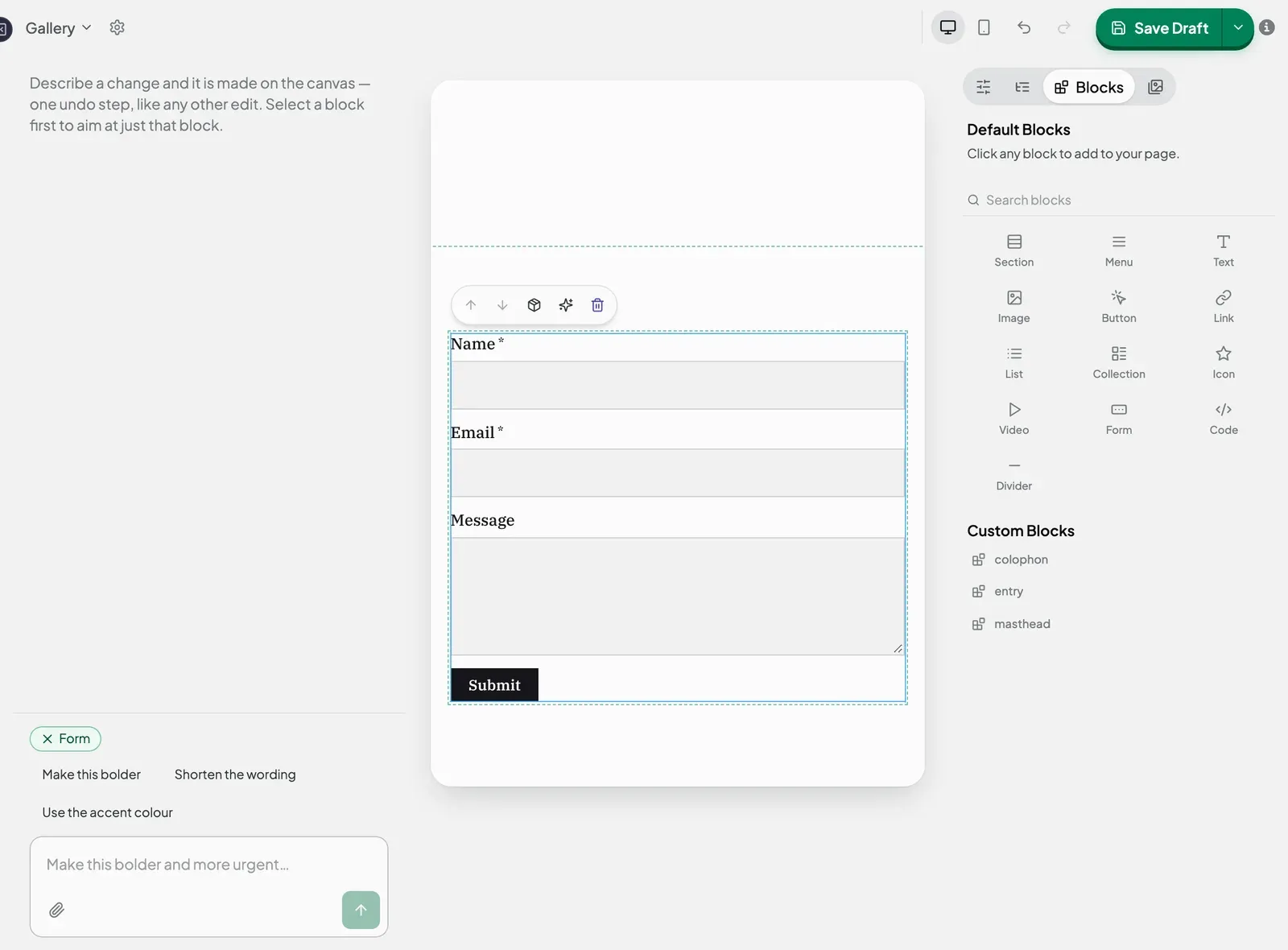
- Open the Blocks tab on the right and click Form.
- Click the new form on your page to select it. It already has three fields: Name, Email and Message.
Choose the fields
- With the form selected, open the Design tab and click Edit form fields. The Form fields window opens.
- Click a field in the list to change it, or click Add field to add a new one. Use the arrows to move a field up or down, and the bin icon to remove it.
- For each field, you can set:
| Setting | What it does |
|---|---|
| Label | The question your visitor sees, such as “Your name”. |
| Type | The kind of answer: Text, Email, Phone, Number, Long text, Checkbox, Dropdown, Multiple choice or Date. |
| Required | When turned on, visitors must answer this before they can send the form. |
| Placeholder | Light grey example text shown in the empty box. |
| Answer length | Optional. The Shortest and Longest answer allowed. |
| Choices | Only for Dropdown and Multiple choice. Type one option per line. |
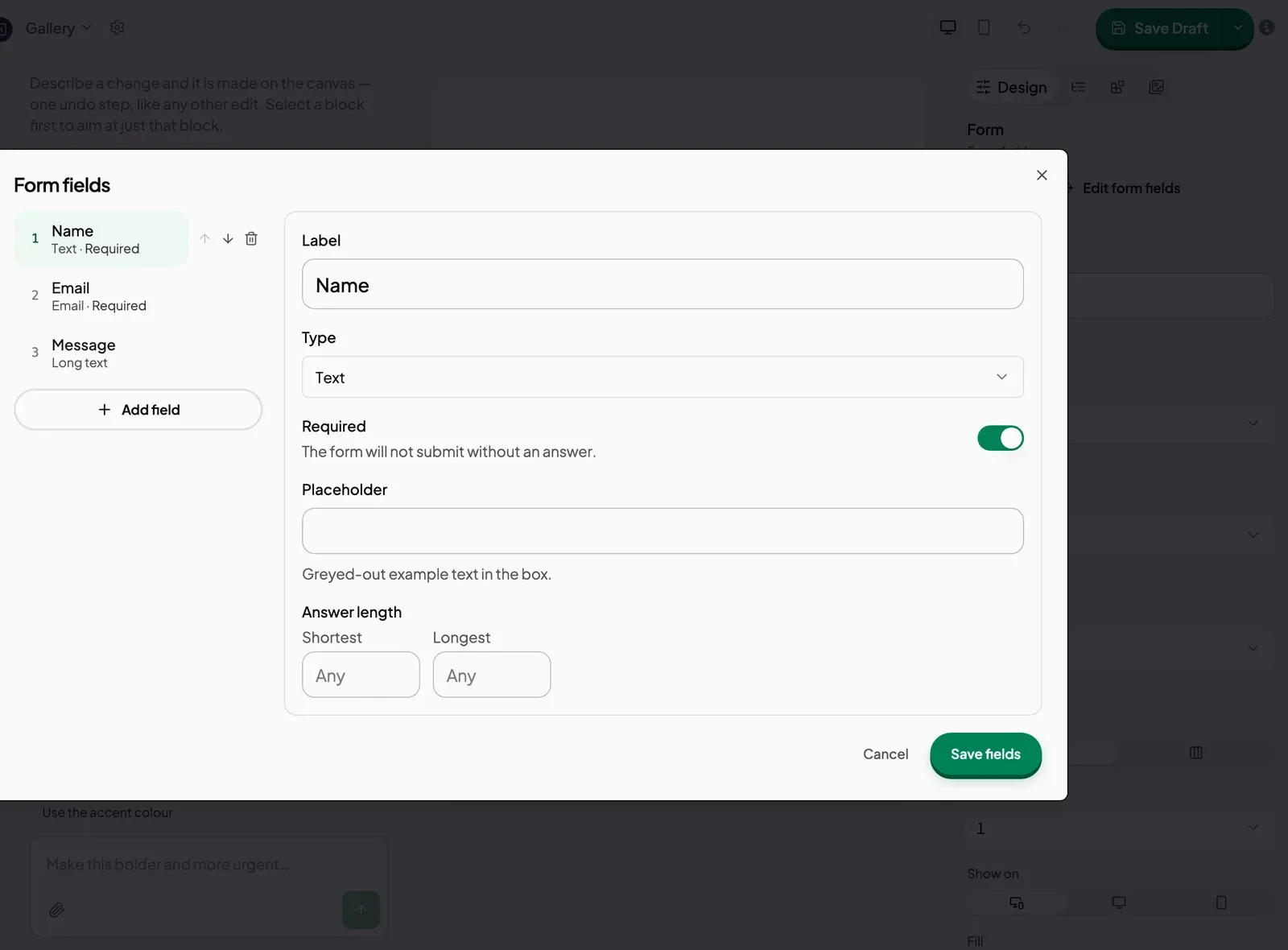
- Click Save fields to keep your changes, or Cancel to close without changing anything.
Keep an Email field so you have an address to reply to. (If you remove every field, the form shows “This form asks nothing yet.”)
To change the wording on the send button, go back to the Design tab and edit Button text. It says Submit to start with.
Where messages go
Each message is emailed to the address you use to log in to Joybird. To answer a visitor, reply to that email.
Joybird does not keep a copy of messages for you to look through later. Your email is the only copy, so:
- Check your spam folder if you are expecting a message.
- Keep the email address on your Joybird account up to date.
To stop spam, one visitor can send up to 5 messages an hour.
Test it
- Publish the page.
- Open the live page with View live.
- Fill in the form and send it.
- Check your email for the message.
After sending, the visitor sees “Thanks — your message has been sent.” If something goes wrong, they see “Your message could not be sent. Please try again.”
Next steps
Still stuck? Contact us and we will help.