Pages and publishing
Publish a page
Every page is either a draft or live:
- A draft is private. Only you can see it, in the editor.
- A live page is on your website for anyone to visit.
The publish button, at the right of the top bar, shows which one your page is and what clicking it will do.
Publish a draft page
- Open the page in the editor.
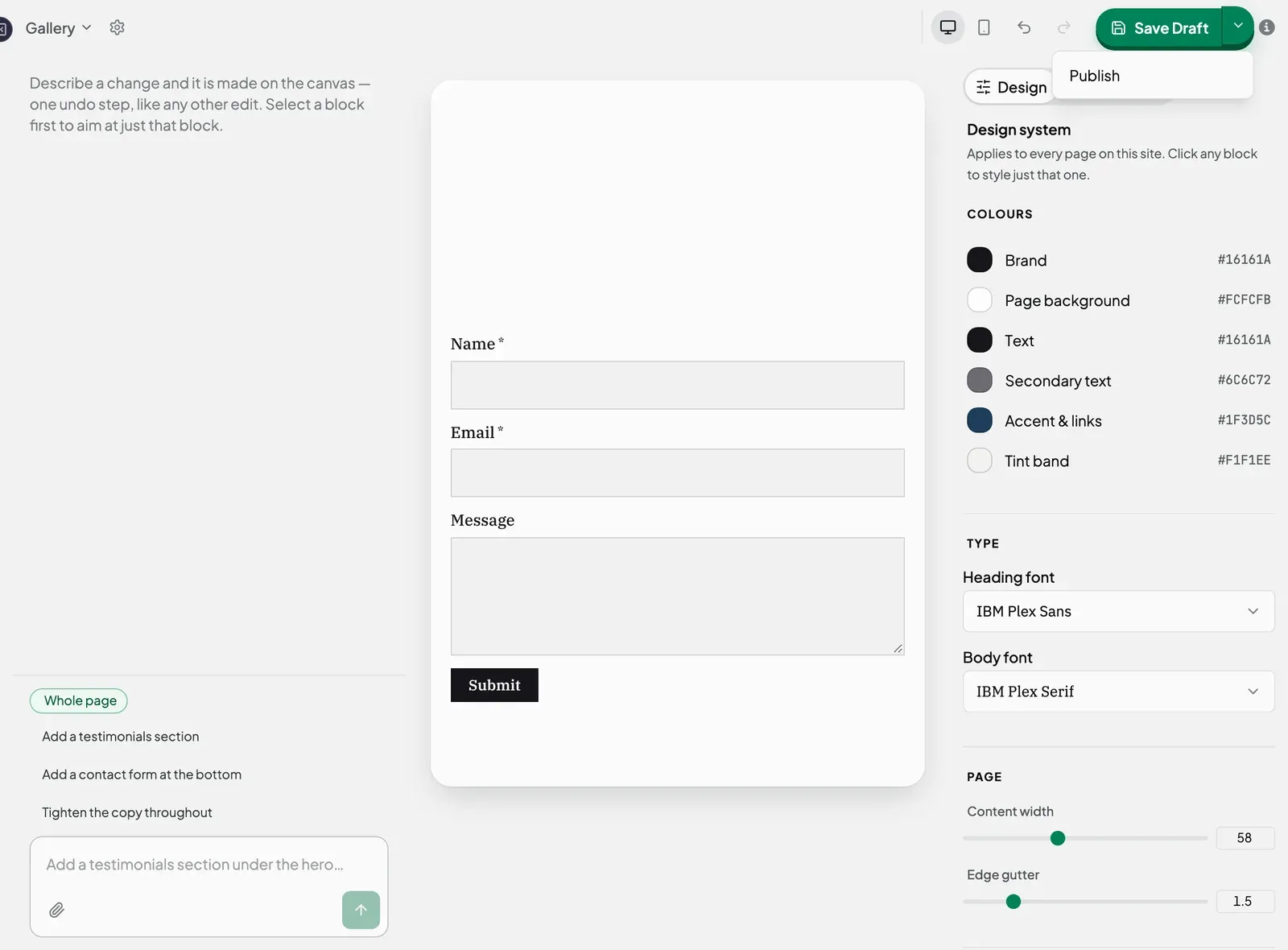
- Click the small arrow next to the publish button. This opens More publishing options.
- Click Publish.
You see “Page published.” and the button changes to Published. Your page is now live.
Keep edits to a draft
Joybird does not save your changes automatically. On a draft page, save them yourself before you leave.
- Make your changes. The button changes to Save Draft.
- Click Save Draft. The button changes to Draft only, which means your changes are saved.
If you try to leave with unsaved changes, Joybird warns you: “This page has changes that have not been saved or published.” Clicking Leave throws your changes away.
Update a live page
A live page has no Save button. To keep your changes, you publish them.
- Edit the page. The button changes from Published to Publish Changes.
- Click Publish Changes.
Until you click it, visitors still see the old version of the page. If you leave without publishing, your changes are lost.
What the button says
| Label | The page is… | Clicking it |
|---|---|---|
| Published | Live, and visitors see your latest version | Nothing. The button is greyed out. |
| Publish Changes | Live, but you have changes visitors cannot see yet | Publishes your changes |
| Save Draft | A draft, with changes not saved yet | Saves your changes |
| Draft only | A draft, with all changes saved | Nothing. Use the arrow menu to publish. |
Not sure? Hold your mouse over the small info icon next to the button for a reminder.
Take a page offline
To remove a page from your live site without deleting it, set it back to a draft.
- Click the arrow next to the publish button to open More publishing options.
- Click Set to draft.
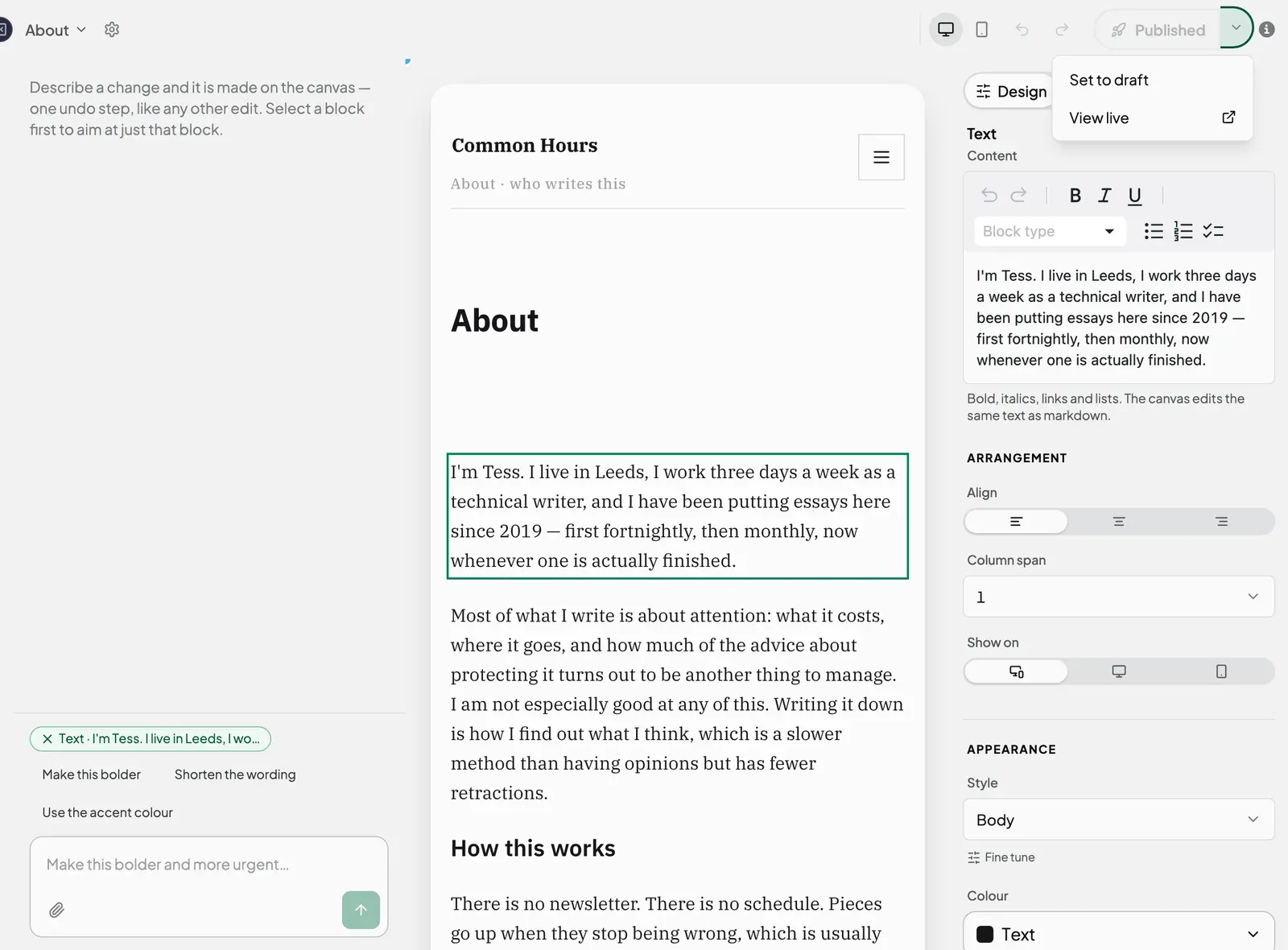
You see “Page moved back to draft.” Visitors can no longer see the page. You can still edit it and publish it again later.
View the live page
On a live page, open More publishing options and click View live. Your page opens in a new tab, as visitors see it. Changes you have not published yet do not show there.
Republish every live page
Some changes affect every page at once: your site’s colours and fonts, parts shared across pages, or custom code. To update all your live pages in one go, go to Pages and click Republish all live pages.
If it does not work
| What you see | Do this |
|---|---|
| ”Could not publish this page.” | Wait a moment and try again. Your changes are still on screen. |
| ”Could not save this page. Your changes are still here.” | Try again. Keep the tab open until it saves. |
Next steps
Still stuck? Contact us and we will help.