Pages and publishing
Page settings
Page settings are where you change a page’s name and web address, and a few other details that do not appear on the page itself.
Open Page settings
- Open the page in the editor.
- Click the gear icon next to the page name in the top bar. The Page settings window opens.
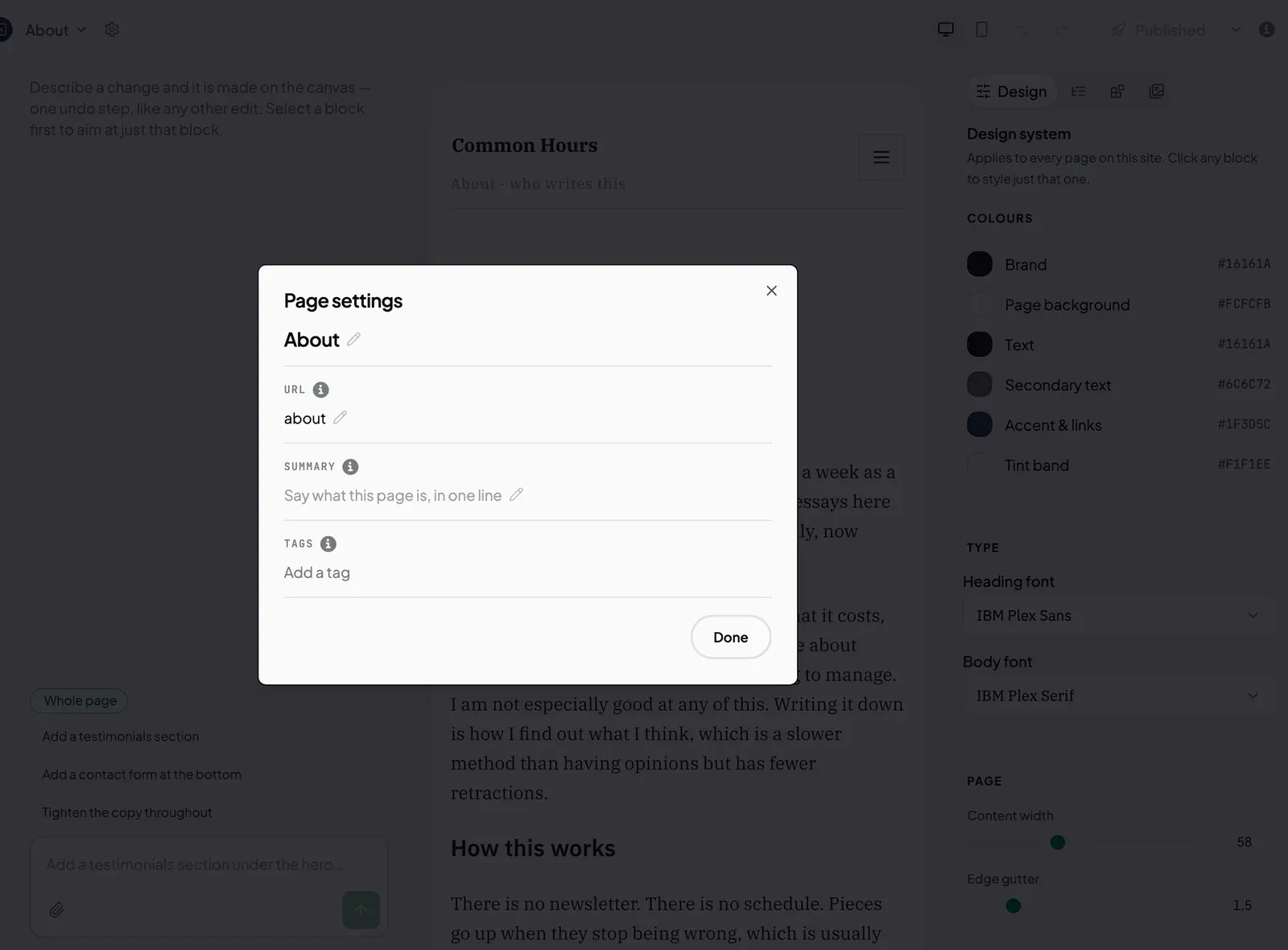
The fields
| Field | What it is for |
|---|---|
| Title | The page’s name. You see it in your list of pages and when switching pages. |
| URL | The end of the page’s web address, such as /about/. Your home page has none, because it lives at your main address. |
| Summary | A one-line description, shown when this page is listed on another page of your site. |
| Tags | Labels for grouping pages. For example, tag your blog posts “blog” to list them together on another page. |
Change a field
- Click the field.
- Type the new value.
- Press Enter, or click somewhere else.
Changes save automatically, so there is no Save button. Click Done to close the window. If a change does not save, you see “That change could not be saved. Nothing has changed.”
Add a tag
- In Tags, type in the “Add a tag” box.
- Press Enter.
Status
The window shows whether the page is published. To publish it or take it offline, use the publish button in the top bar. See Publish a page.
Next steps
Still stuck? Contact us and we will help.