Pages and publishing
Add, rename and delete pages
Add a page
- Click Pages in the left sidebar.
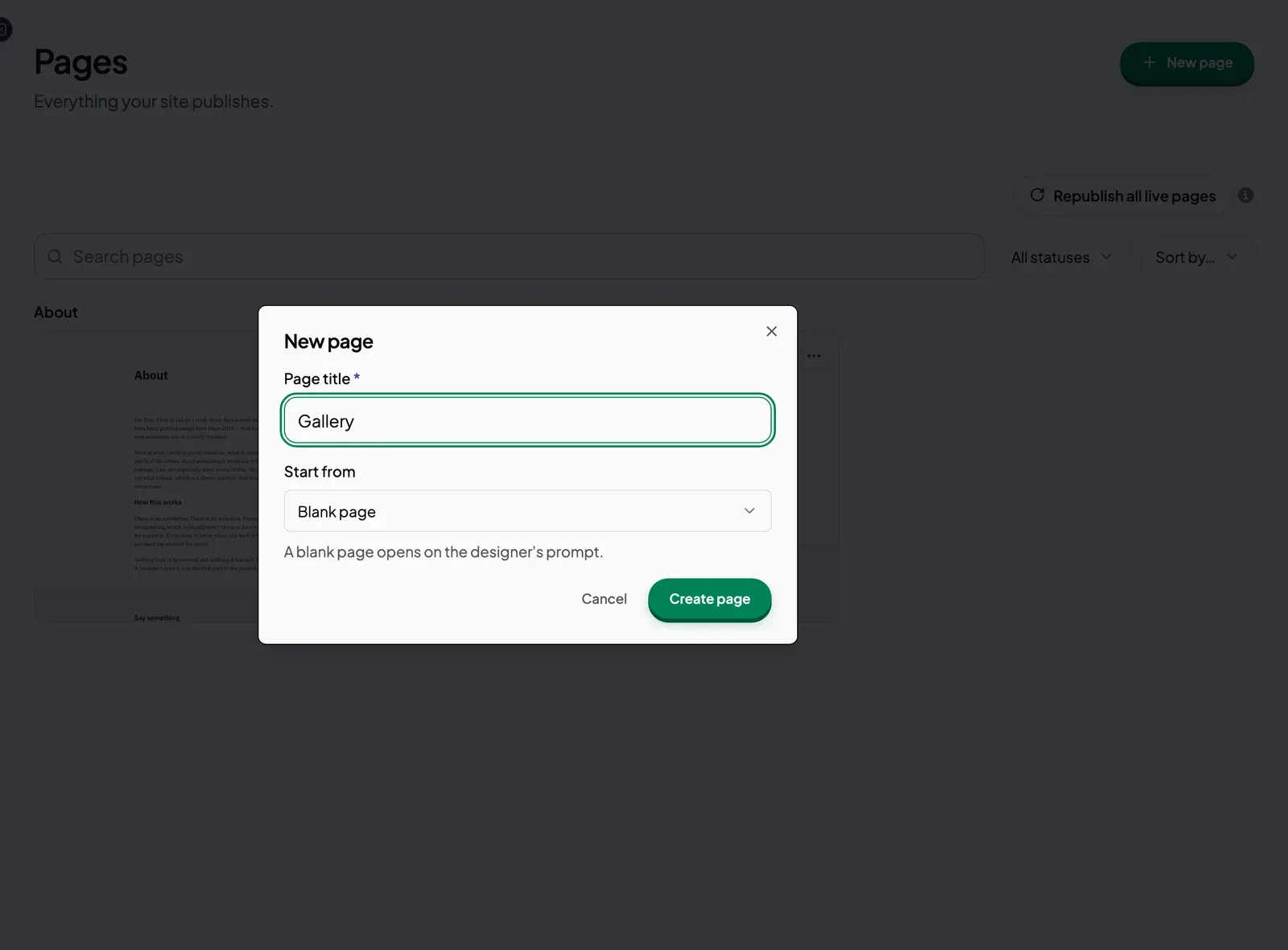
- Click New page.
- Type a name in Page title.
- Under Start from, choose Blank page to start empty, or pick one of your existing pages to copy its layout.
- Click Create page.
A blank page opens with a box asking you to Describe the page you want, so the AI can build it for you. See Use the AI to change a page. A copied page keeps the original’s layout and tags, and starts as a draft.
Free plan limit
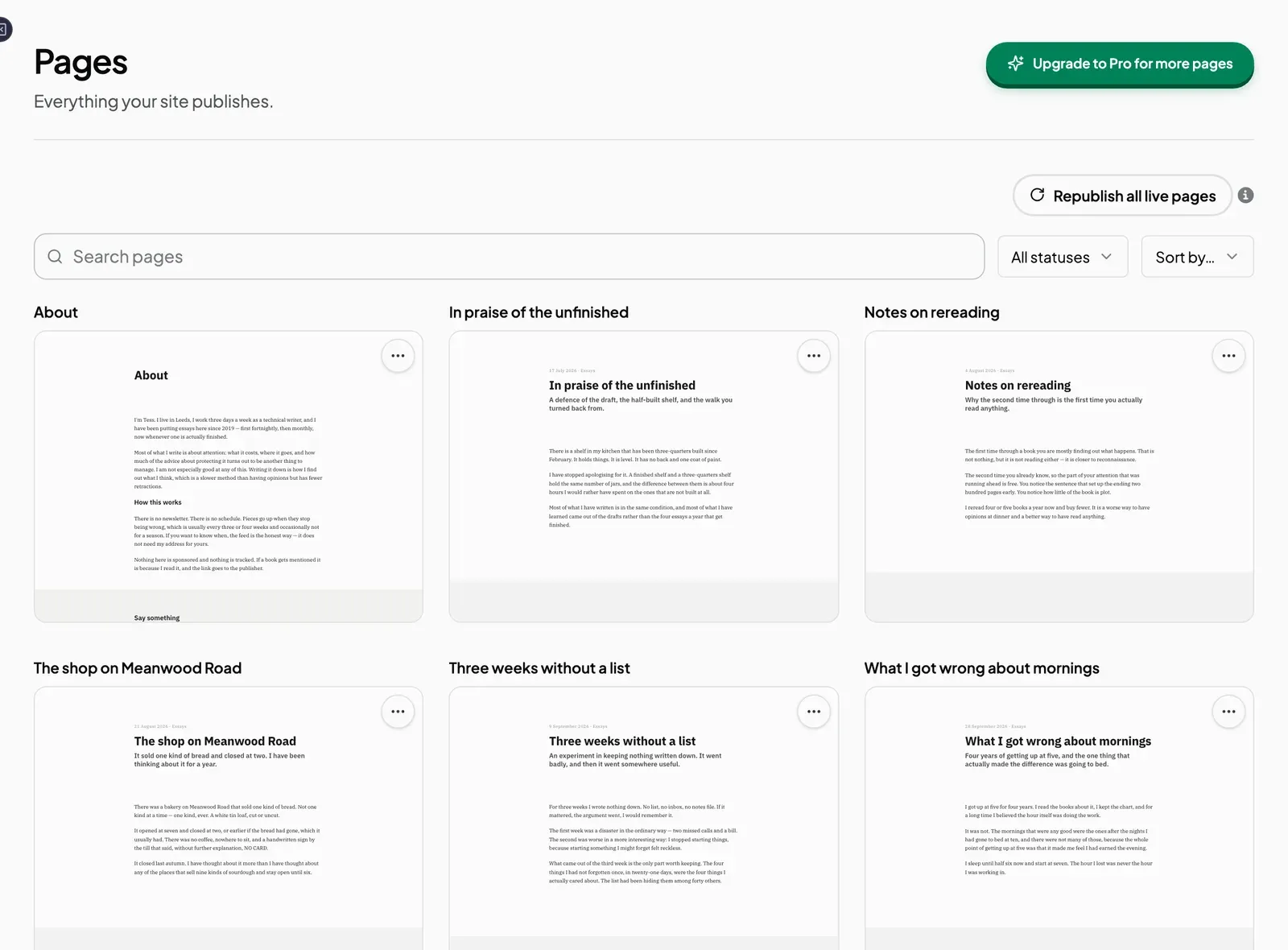
On the free plan, each site can have up to 5 pages. Once a site has 5, the New page button changes to Upgrade to Pro for more pages. If you try to duplicate a page at the limit, you see “Your plan has reached its page limit.”
Duplicate a page
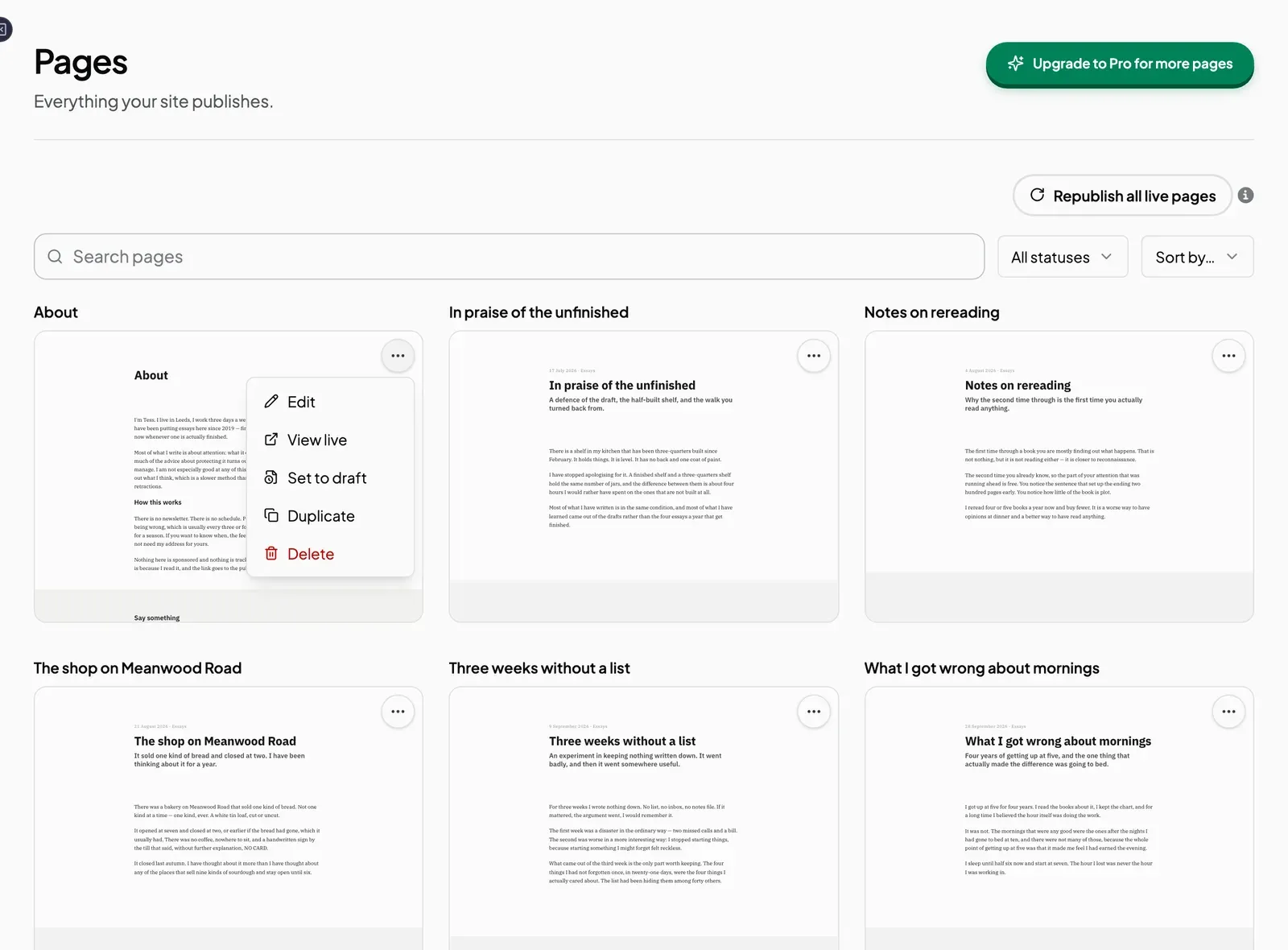
- In the Pages list, open the menu on the page you want to copy. The menu offers Edit, View live, Set to draft (or Publish), Duplicate and Delete.
- Choose Duplicate.
- In the Duplicate page window, type a name in Page title and click Duplicate page.
Switch between pages
In the editor, click the page name in the top bar. Type part of a page name in Search pages and press Enter to open it. Pages that are not live yet are marked Draft.
Rename a page
Open the page, click the gear icon next to the page name to open Page settings, and change the Title. See Page settings.
Delete a page
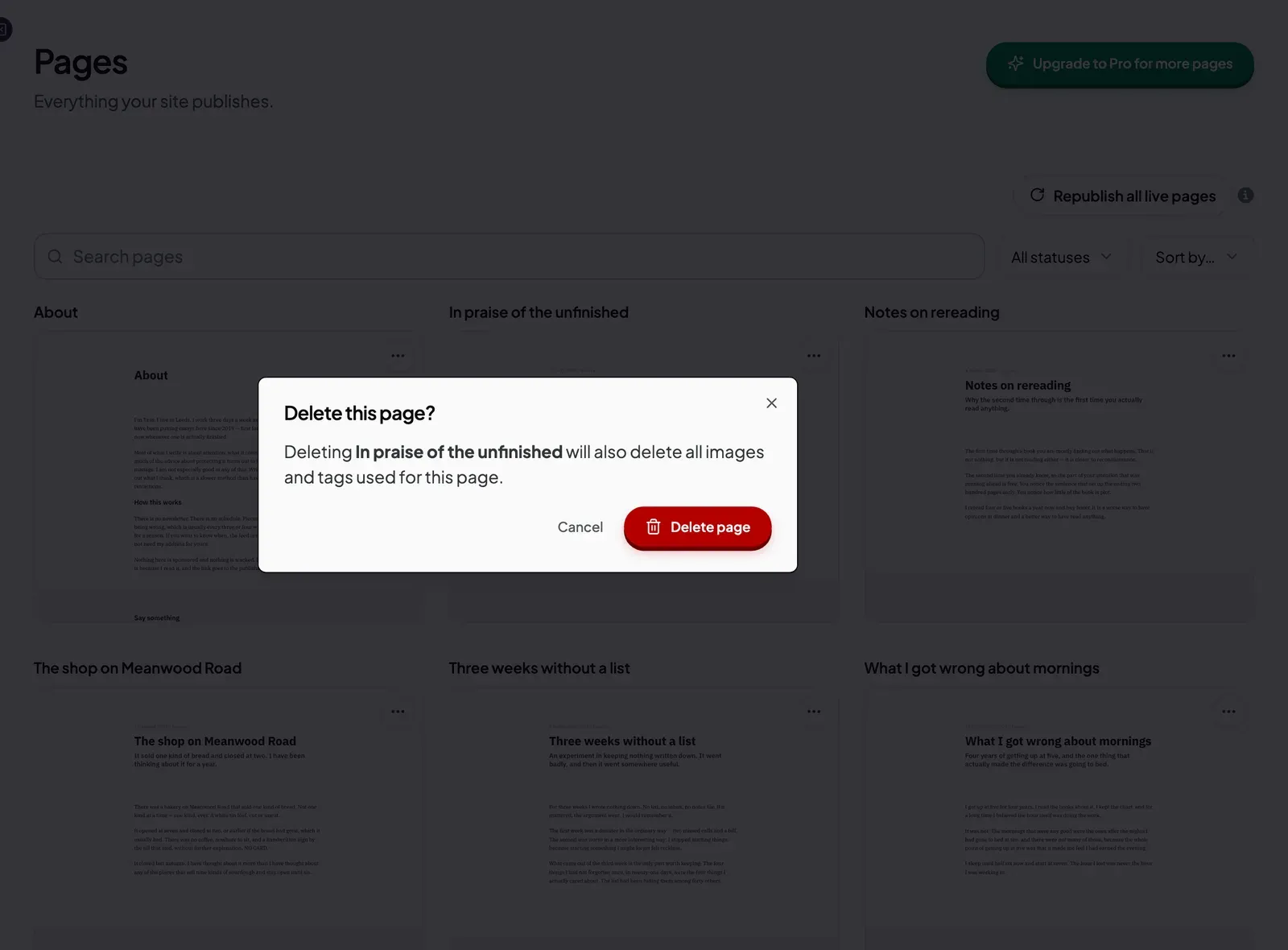
Deleting a page cannot be undone. It also deletes the images and tags used on that page.
- In the Pages list, open the menu on the page you want to remove.
- Choose Delete.
- Joybird asks Delete this page? Click Delete page to confirm.
If the delete fails, you see a message that the page “could not be deleted. Nothing has been removed.” Click Try again.
Next steps
Still stuck? Contact us and we will help.