Editing
Use the AI to change a page
Tell the AI what you want in everyday words, and it changes your page for you. You can still edit anything yourself afterwards.
Ask for a change
- Open the page in the editor.
- Find the AI panel on the left. If you cannot see it, click Ask AI in the top bar.
- Choose what the AI should work on:
- One part of the page: click it on the page first. A label above the message box shows what you picked, for example Form.
- The whole page: click nothing. The label says Whole page.
- In the box that says “Describe the change you want”, type your request. For example: Make this bolder, Shorten the wording, or Add a testimonials section.
- Send your message.
Not sure what to ask? Click one of the suggestions above the box, such as Add a testimonials section, Add a contact form at the bottom or Tighten the copy throughout.
Fill a blank page
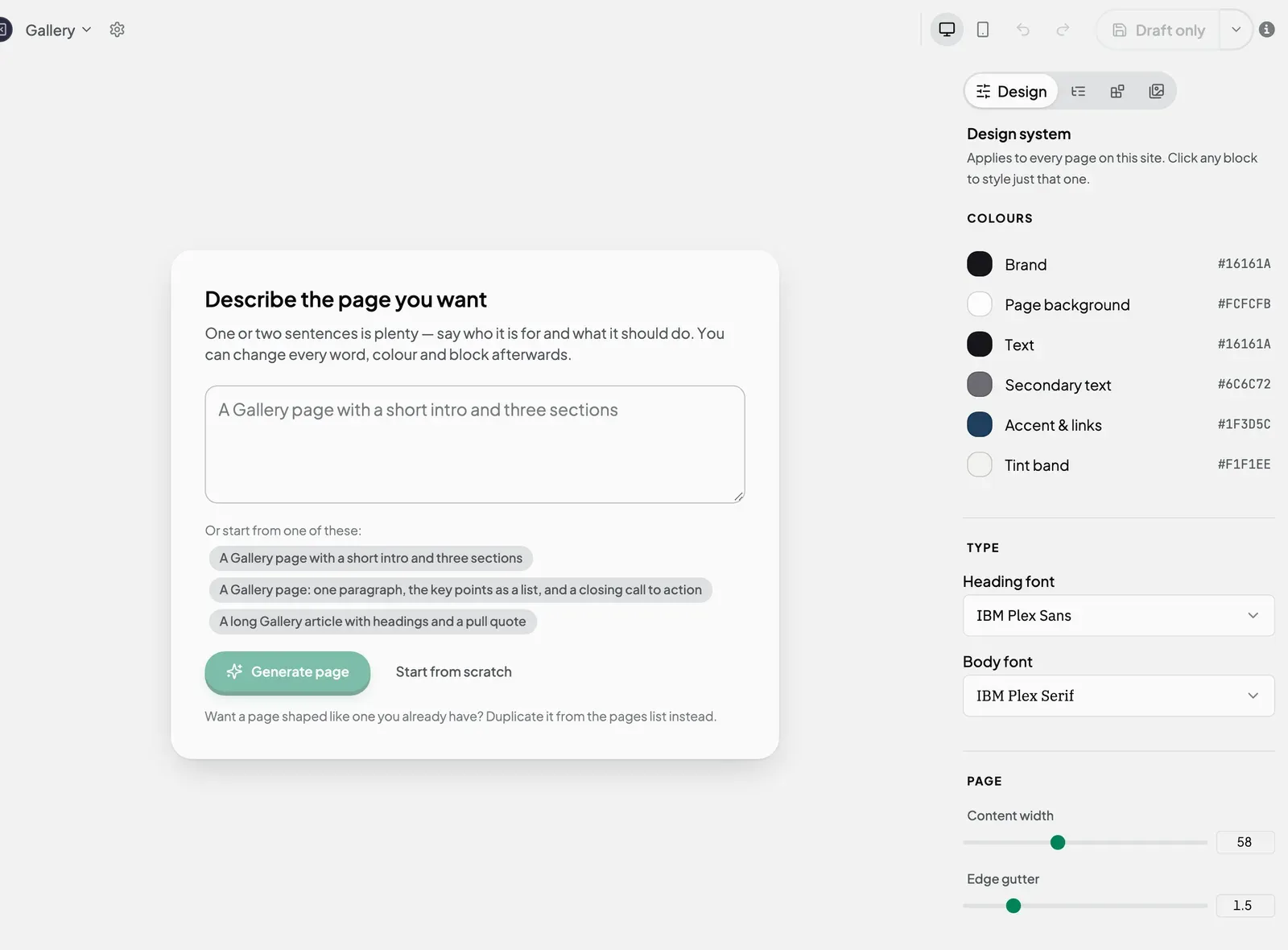
A new blank page asks you to Describe the page you want.
- Describe the page in a sentence or two, or click one of the examples.
- Click Generate page. The button says Generating… while the AI builds it.
To build the page yourself instead, click Start from scratch.
Undo a change
Don’t like what the AI did? Click Undo in the top bar, or press Cmd/Ctrl + Z. One undo reverses the AI’s whole change.
Visitors do not see anything the AI changes until you publish the page. See Publish a page.
If it does not work
| What you see | What it means |
|---|---|
| ”Nothing needed changing.” | The AI thinks the page already does what you asked. Try describing the change in more detail. |
| ”That change could not be applied to the page as it is now. Nothing was changed.” | The page was edited while the AI was working. Ask again. |
| ”You’ve reached your daily AI limit.” (or weekly) | You have used all your AI requests for now. Wait for the time shown in the message. Your site is saved, and you can keep editing it yourself in the meantime. |
Next steps
Still stuck? Contact us and we will help.