Editing
Edit text, images and buttons
Edit text
- Click the text on your page to select it.
- Double-click it to start typing. You can make words bold or italic, and add links and lists.
- When you are done, press Escape or click somewhere else on the page.
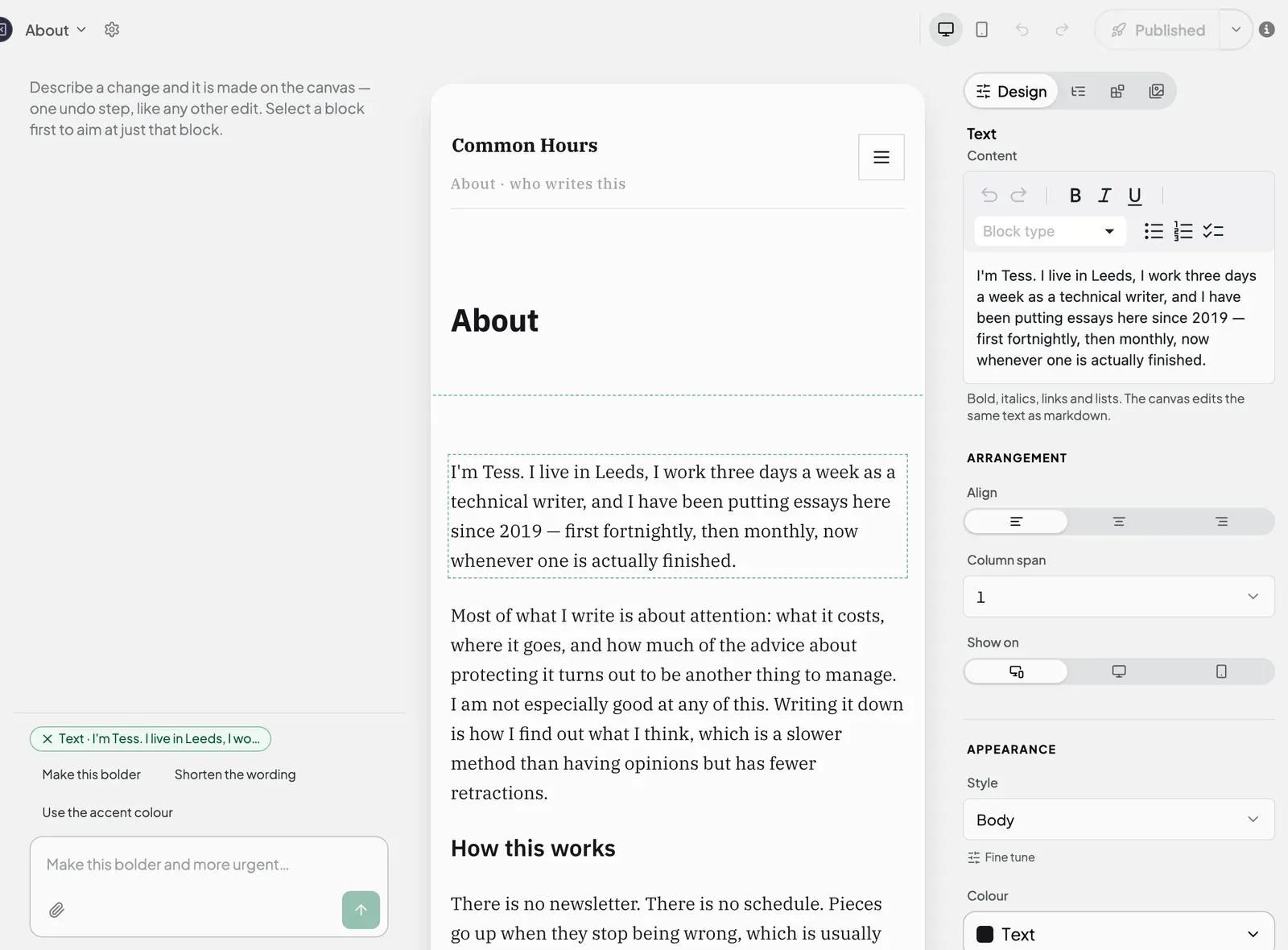
While you are typing, keys like Delete and Cmd/Ctrl + Z (undo) only affect your text, not the rest of the page.
Replace an image
- Click the image to select it.
- In the Design tab, find Source and choose where the new picture comes from:
| Source | Use it for |
|---|---|
| URL | A picture that is already online. Paste its web address. |
| Upload | A picture saved on your computer or phone. |
| Unsplash | Free professional photos. Search for one and click to use it. |
- In Alt text, write a short description of the picture, such as “Fresh sourdough loaves on a wooden shelf”. People who cannot see the image hear this read aloud, and search engines use it too.
- Optional: to make the picture clickable, enter a web address in Link.
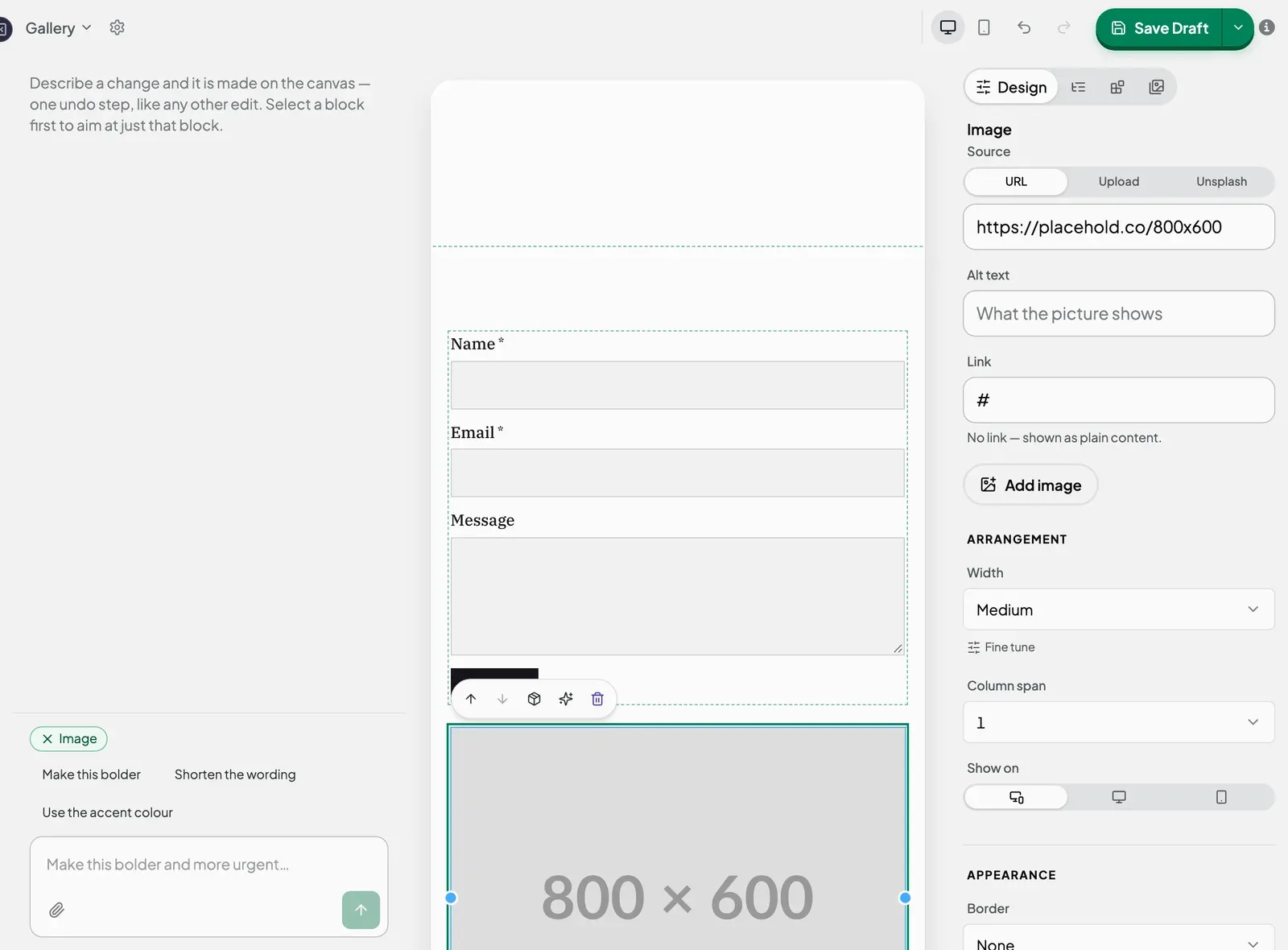
Pictures you upload are listed in the Asset Library tab. In a gallery or list, click Add image to add another picture.
If Upload does not work, open the page from your site’s Pages list and try again.
Change where a button goes
- Click the button to select it.
- Change the wording in Button text.
- In Link, enter where the button should go:
- Another page on your site: type its address, such as
/about/. - Another website: paste the full address, such as
https://example.com.
- Another page on your site: type its address, such as
Until you add a link, the button does nothing when clicked, and the field shows “No link yet”.
Check your changes
Click Desktop and Mobile in the top bar to see how the page looks on a computer and on a phone. When it looks right, publish it so visitors see the change. See Publish a page.
Next steps
Still stuck? Contact us and we will help.