Editing
Add, move and delete blocks
Every page is built from blocks: a piece of text, an image, a button, a form and so on. Blocks sit inside Sections, the larger areas that divide a page into parts.
Add a block
- Click on your page where the new block should go: a section, or a block inside one.
- Open the Blocks tab in the panel on the right.
- Click the block you want. It appears on your page.
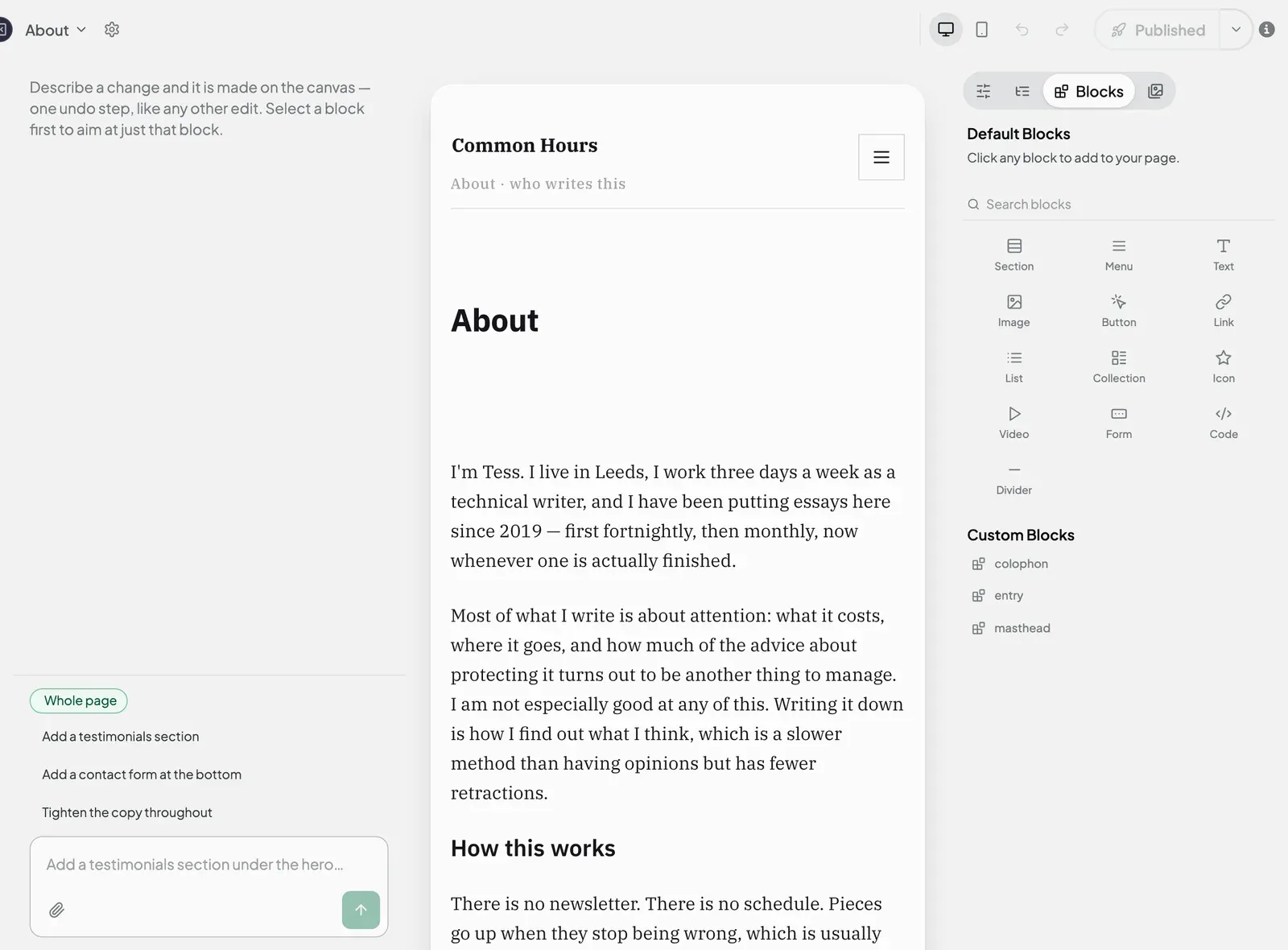
The blocks you can add are Section, Menu, Text, Image, Button, Link, List, Collection, Icon, Video, Form, Code and Divider. Hold your mouse over a block to see what it does. Blocks you have saved to reuse (called components) appear further down, under Custom Blocks.
On an empty page you can only add a Section. The other blocks are greyed out and say “Add a section first”. Add a section, then add blocks into it.
A Collection repeats one of your saved components, so you need to save a component before you can use it.
Move a block
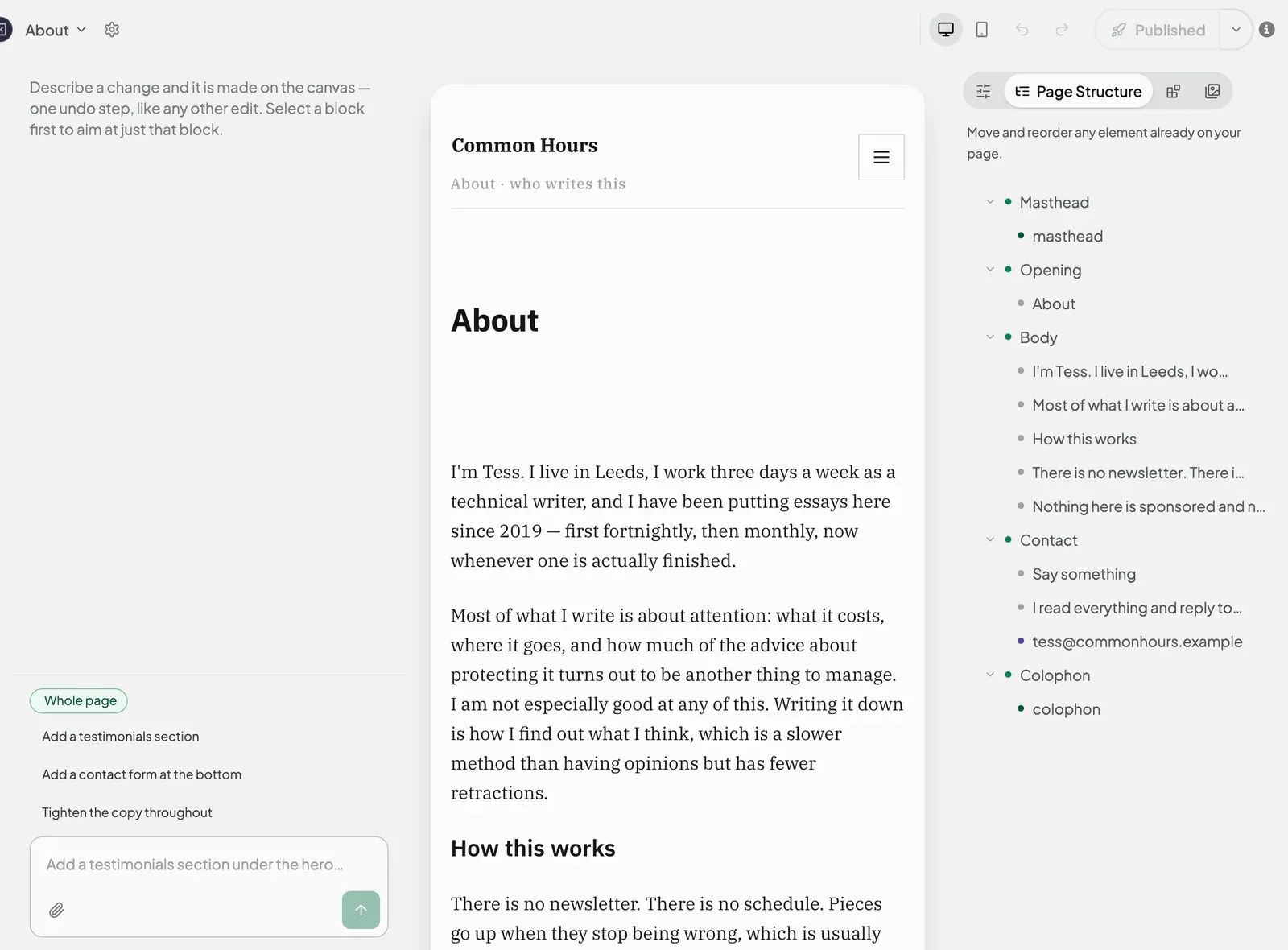
- Open the Page Structure tab. It lists every block on the page, in order.
- Drag a block up or down to move it. Drop it on a different section to move it into that section.
Duplicate, copy and delete
Click a block to select it, then use these keys. On a Mac use Cmd; on Windows use Ctrl.
| To… | Press |
|---|---|
| Duplicate it (make a copy on the page) | Cmd/Ctrl + D |
| Copy it and paste it somewhere else | Cmd/Ctrl + C, then Cmd/Ctrl + V |
| Delete it | Delete or Backspace |
| Undo your last change | Cmd/Ctrl + Z |
Deleting a section also deletes everything inside it. If you delete something by mistake, press Cmd/Ctrl + Z to bring it back.
Next steps
Still stuck? Contact us and we will help.