Account and plans
AI credits: how many you have and what they cover
Every time the AI does something for you, it uses credits: building a page, importing a page from another site, planning a site with you, or making a change you describe. A small change uses a few credits. Building a whole page uses more.
How many credits you get
Each plan comes with a number of credits a month.
| Plan | AI credits a month |
|---|---|
| Free | 300 |
| Pro | 2,000 |
Credits come back on the first of each month. Unused credits do not carry over.
What credits cover
Credits depend on how much the AI has to read and write, so the same kind of request can cost more on a long page than on a short one. These are typical costs from real Joybird use:
| What you ask the AI to do | Typical credits |
|---|---|
| A small change, like rounding a logo or swapping links for icons | 5–10 |
| A bigger change, like restyling a page to match another | 40–60 |
| Build one page from a description | 45–60 |
| Import one page from your existing site | 15–35 |
| One message while planning your site | 3–10 |
As a rough guide, here is what each plan’s monthly credits cover:
| You could… | Free (300) | Pro (2,000) |
|---|---|---|
| Import an existing site | about 10 pages | about 80 pages |
| Build a site from a description | about 4 pages | about 30 pages |
| Make bigger AI changes | about 6 | about 40 |
| Make small AI changes | about 40 | about 250 |
You can mix these: for example, on Free, import a 6-page site and then make a few bigger AI changes to it.
Editing by hand never uses credits. Click any text, image or button to change it yourself as much as you like. See Edit text, images and buttons.
See what you have used
- In the sidebar, click Account Settings.
- Scroll to AI usage.
The table lists every AI request from the last 30 days, newest first: when you made it, what you asked, what the AI did, and how many credits it used.
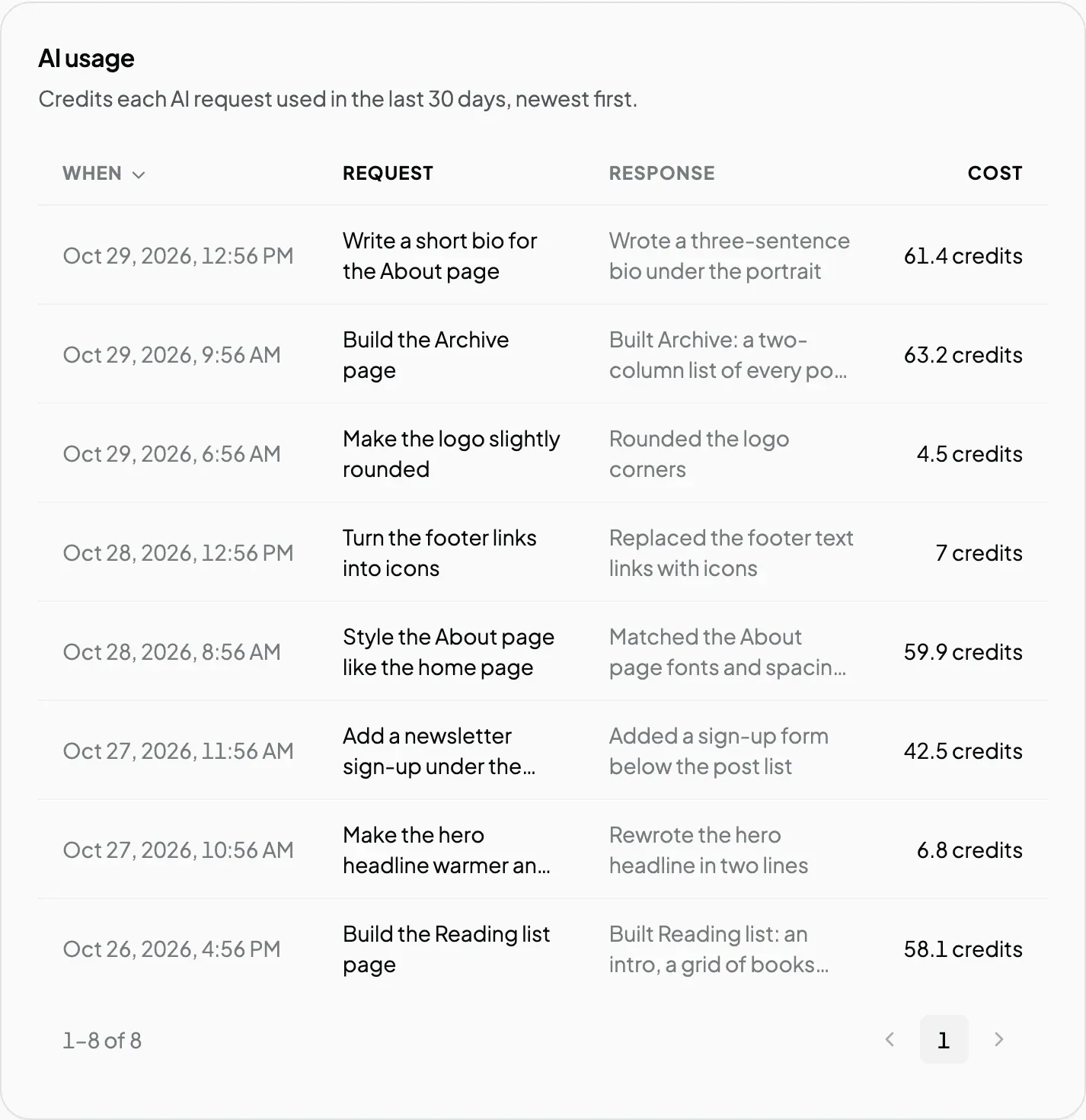
A cost starting with ”~” is rounded. The table covers the last 30 days, while your allowance counts from the first of the month, so near the start of a month the table can show more than this month’s total.
When your credits run out
The AI stops and tells you the date your credits come back.
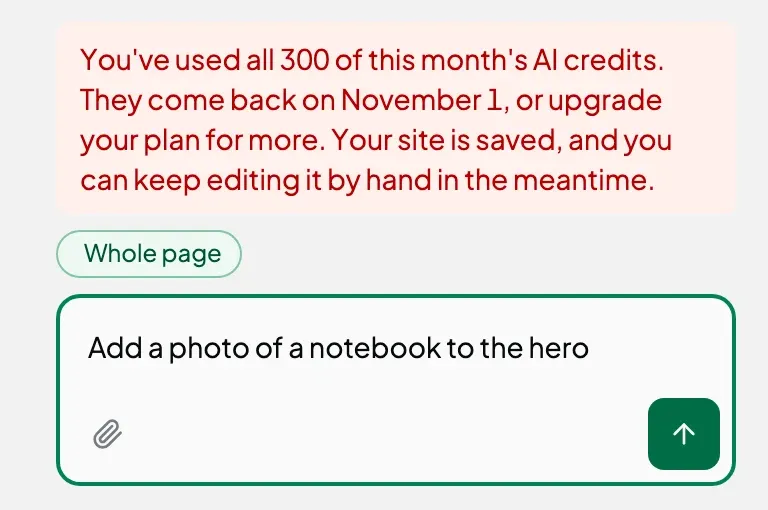
Nothing is lost when this happens. Your site and pages are saved, your live site stays online, and you can keep editing by hand and publishing as usual.
To keep using the AI before your credits come back, upgrade to Pro. See Upgrade, manage billing and cancel.
Daily and weekly limits
The AI also has daily and weekly limits for each account, separate from your monthly credits. If you reach one, the message says “daily” or “weekly” and tells you how long to wait. Waiting is the only way past these limits; upgrading does not lift them.
Next steps
Still stuck? Contact us and we will help.