Domains
Connect a custom domain
Every Joybird site comes with a free web address ending in joybird.ai. If you own a domain name, such as yourbusiness.com, you can use it instead. Visitors then see your own address, with a padlock in the address bar to show the site is secure.
Connecting a domain takes two parts: you tell Joybird which domain to use, then you copy a few settings into the account where you bought the domain. These settings are called DNS records. They tell the internet where to find your site.
Before you start
You need:
- A domain you own, and the login for the company you bought it from (such as GoDaddy, Namecheap or Squarespace). This guide calls that company your domain provider.
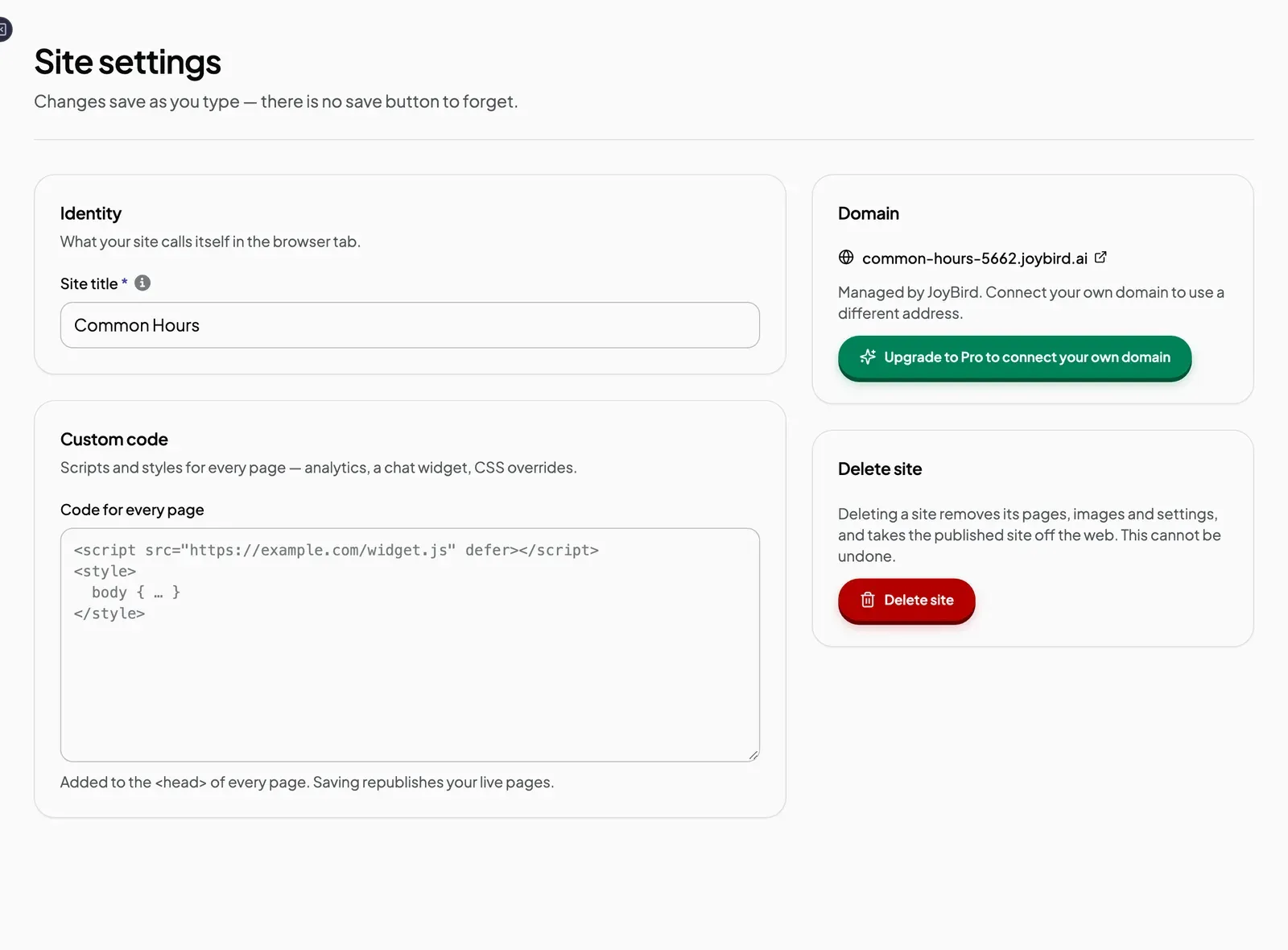
- The Pro plan. On the free plan, the button says Upgrade to Pro to connect your own domain. See Free and Pro: what you get.
Each site can use one domain.
Connect the domain
- Click Site in the left sidebar to open Site settings.
- In the Domain panel, click Connect your own domain. (Before you connect a domain, this panel shows your free joybird.ai address and the note “Managed by JoyBird.”)
- In Your domain, type your domain, for example
www.yourbusiness.com. Leave outhttps://. - Click Connect domain.
Tip: use the www. version. An address starting with www. works with every domain provider. If you type your domain without it (such as yourbusiness.com), Joybird warns that some providers cannot handle this. If you are not sure about yours, click Use www.yourbusiness.com instead.
Add the DNS records
Joybird now shows a short list of records to copy into your domain provider’s account. Each record has a type, a Name and a Value, and a copy button next to each.
| Group | What it is for |
|---|---|
| Point your domain at us | Sends visitors who type your domain to your Joybird site. Always add this. |
| Prove the domain is yours | Only needed if your provider will not let you add the first record yet. |
| Issue the certificate | Lets Joybird set up the padlock (secure connection) for your site. |
- Log in to your domain provider in a new browser tab, and find the page for DNS settings (sometimes called “DNS records” or “Manage DNS”).
- Add each record exactly as Joybird shows it. Use the copy buttons to copy the Name and Value so nothing is mistyped.
- If your provider is Cloudflare, set each record to DNS only (the grey cloud icon).
- Save the changes at your provider, then come back to Joybird.
Wait for it to go live
A status message under your domain shows how things are going.
| Status | What it means | What to do |
|---|---|---|
| Waiting for your DNS records | Joybird cannot see your new records yet. | If you have added them, wait a little, then click Check now. |
| Checking your records and issuing the certificate | Joybird found your records and is setting up the padlock. | Nothing. This finishes by itself. |
| Connected | Your domain is working. | Click the link in the panel to visit your site. |
| This didn’t complete | Joybird could not find your records in time. | See Domain stuck or not connecting. |
Changes at your domain provider can take anywhere from a few minutes to several hours to take effect. You do not need to keep the page open: Joybird keeps checking for up to 7 days. While the page is open, it checks every 10 seconds.
Expected result
The Domain panel shows your domain as a link marked Connected. Click it and your site opens with a padlock in the address bar.
Disconnect a domain
In the Domain panel, click Disconnect this domain. Your site stops appearing at that domain.
Next steps
Still stuck? Contact us and we will help.