Getting started
Build a site from a description
Tell Joybird about your business in a sentence or two, and it plans and builds a whole site for you. You check and adjust the plan first, then Joybird builds each page.
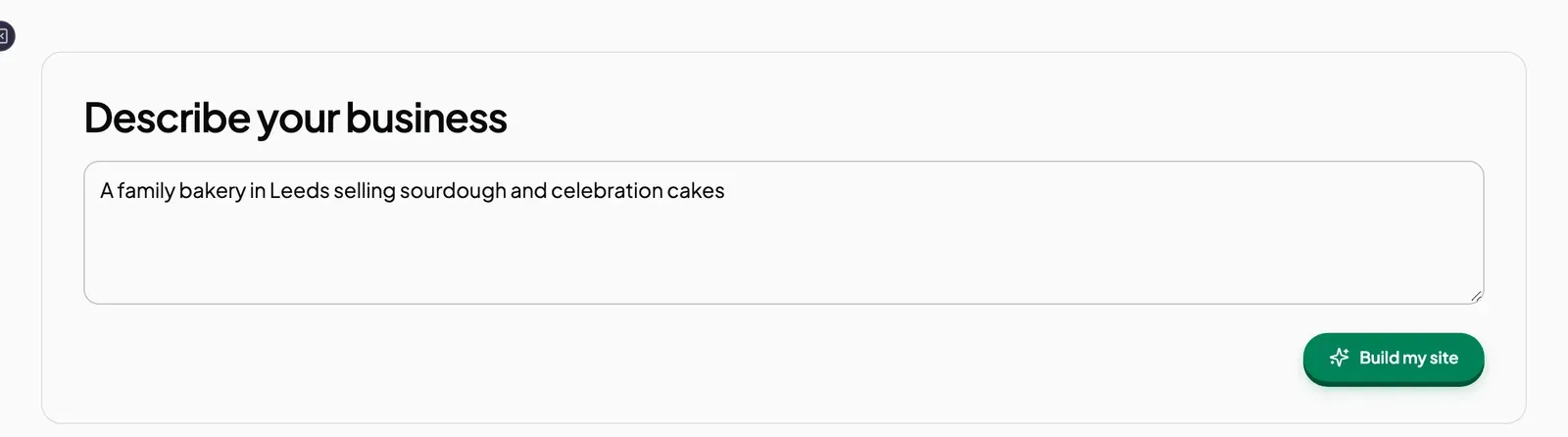
Describe your business
- On the New site screen, the Describe your site tab is open. Find Describe your business.
- Type one or two sentences saying what your business is, what it offers, and where. For example: A family bakery in Leeds selling sourdough and celebration cakes. Not sure what to write? Click Bakery, Personal trainer or Photographer under the box to fill in an example.
- Click Build my site, or press Enter. (To start a new line instead, press Shift+Enter.)
A new screen opens. On the left is a chat with Joybird; on the right is your site plan.
Review the plan
The plan is titled Your site plan. You can change anything on it before Joybird builds the site.
| Part | What you can do |
|---|---|
| Business name | Type a new name. |
| Logo (optional) | Click Upload logo and choose a PNG, JPG, SVG or WebP file. Click the × next to it to remove it. |
| Pages | Click a page’s title or description to change it. Click Add page to add one, or the bin icon to remove one. Your site needs at least one page. |
| Colours | Click a colour swatch to change Background, Text, Brand, Accent or Borders. |
A plan can have up to 8 pages. Each page title can be up to 60 characters, and each description up to 300.
You can also ask for changes in the chat, in your own words. For example: Warmer colours or Add a gallery page. Or click a quick reply: Looks good, Try different colours or Suggest fewer pages. You can attach your logo to a chat message too (PNG, JPEG, WebP, GIF or PDF, up to 3 files).
Build the site
- Click Build my site at the bottom of the plan.
- A checklist appears under Building your site. Joybird builds your pages one at a time.
- When the heading changes to Your site is ready, click See my site.
Your new pages are saved as drafts, so no one else can see them yet. When you are happy with a page, publish it. See Publish a page.
If something goes wrong
| What you see | What it means | What to do |
|---|---|---|
| A step “did not finish” and the page is empty | That one page could not be built. Your other pages are fine. | Click See my site, open the empty page, and describe what you want in the AI panel. |
| A Try again button | The site could not be set up, so no pages were made. | Click Try again. |
| ”You’ve reached your daily AI limit” (or weekly) | You have used all your AI requests for now. | Wait for the time shown in the message. Your site is saved, and you can keep editing it yourself in the meantime. |
Next steps
Still stuck? Contact us and we will help.