Editing
Tour of the editor
The editor is where you change your pages. Your page appears in the middle, looking just as visitors will see it. Click anything on it to select it, then use the panels around it to make changes.
To open the editor, click Pages in the left sidebar and open a page.
The layout
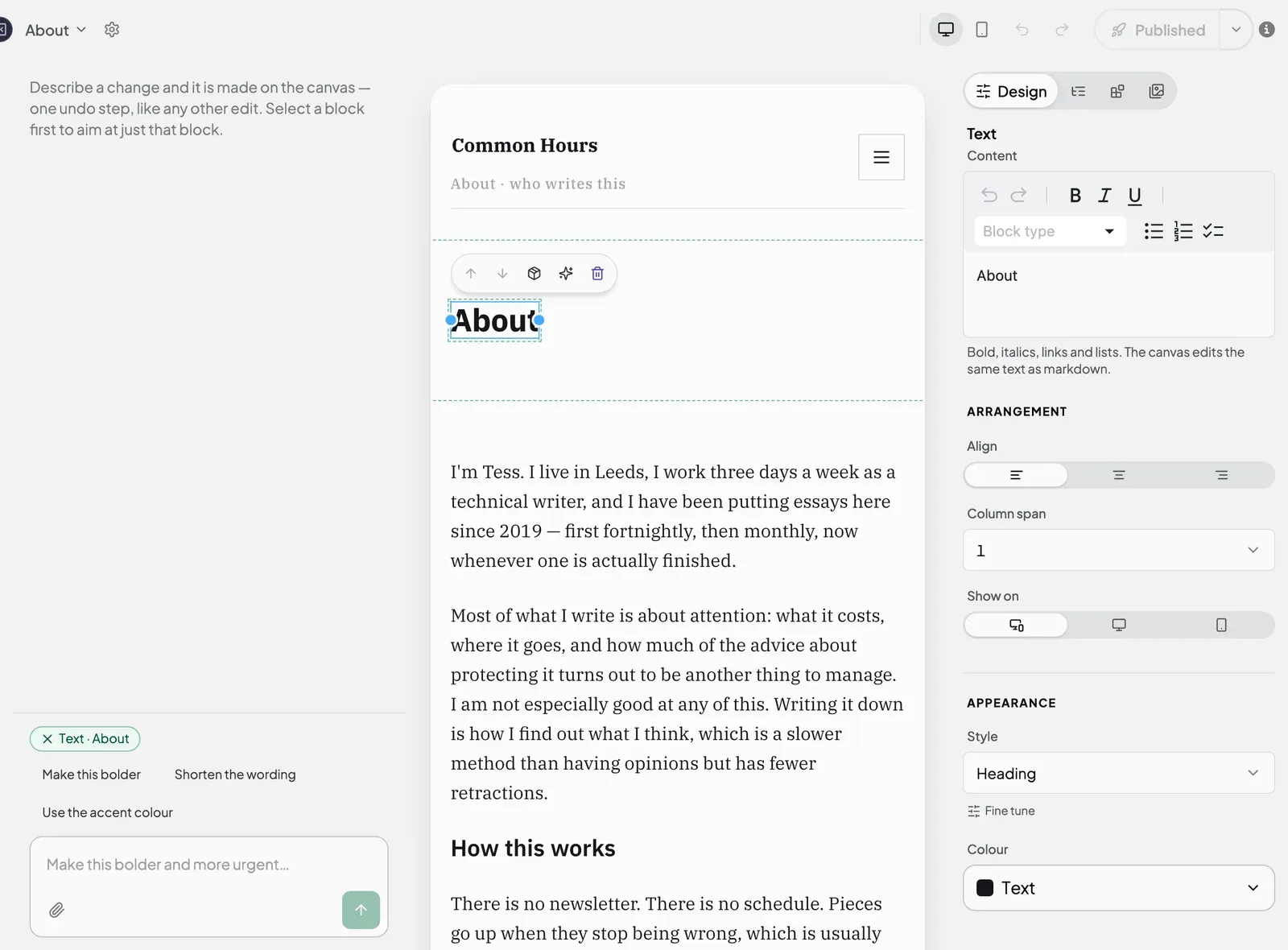
The editor has three areas, from left to right:
- The AI panel. Ask the AI to make changes for you.
- The canvas. Your page, where you click to select and edit things.
- The right-hand panel. Tabs for changing the look of your page, adding things to it, and finding your images.
The top bar
| Control | What it does |
|---|---|
| Page name with an arrow | Switches between pages. Click it, then search for a page in Search pages or pick one from the list. Choose All pages to go back to your list of pages. Pages that are not live yet are marked Draft. |
| Gear icon | Opens Page settings, where you change the page’s name and web address. See Page settings. |
| Desktop / Mobile icons | Preview how the page looks on a computer or a phone. These only change your view, not the page. |
| Undo / Redo | Go back or forward through your changes. |
| Publish button | Saves or publishes your changes. What it says depends on whether the page is live. See Publish a page. |
| Info icon | Hold your mouse over it to see what the publish button will do. |
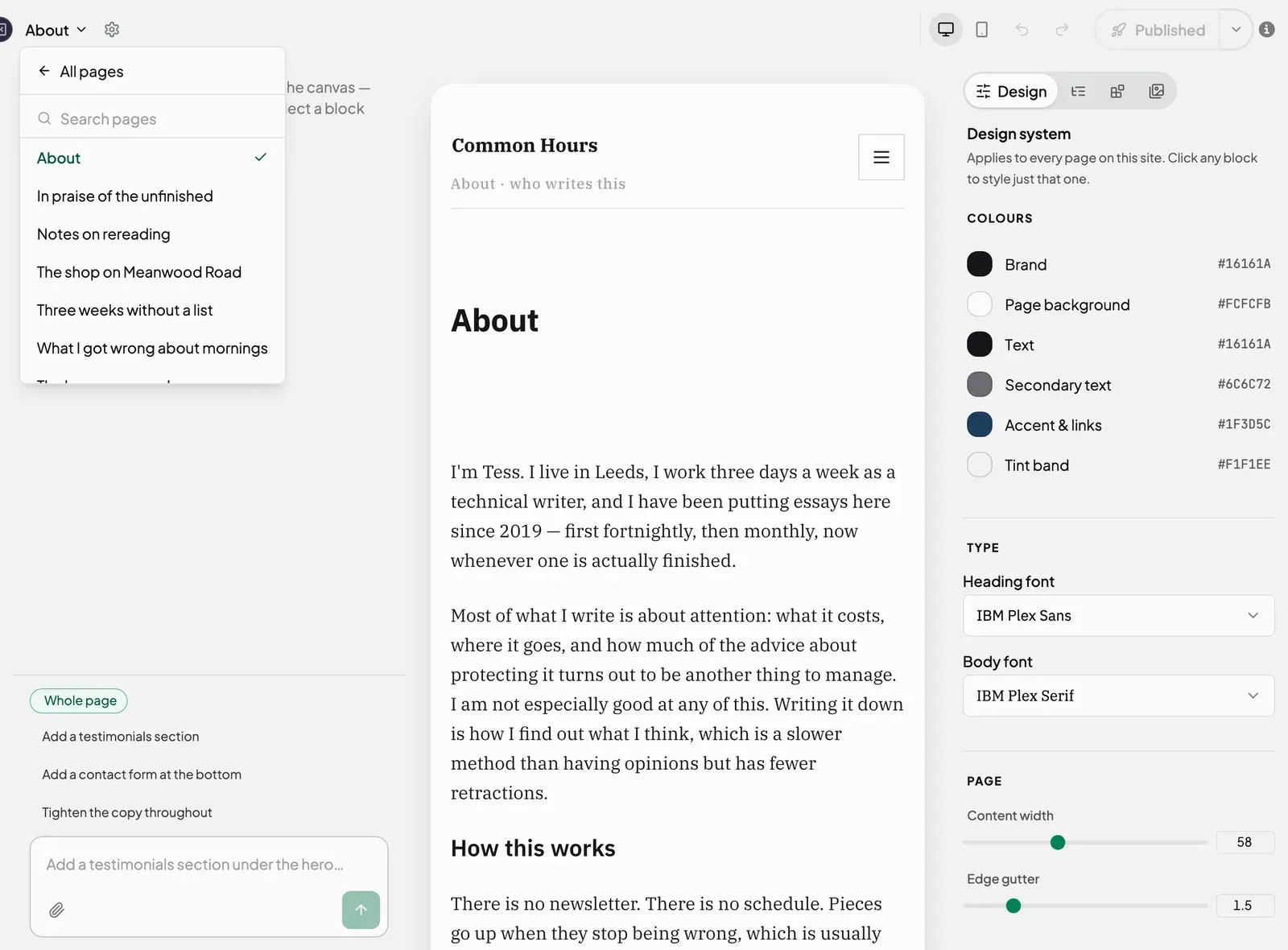
The right-hand panel
The panel on the right has four tabs, shown as icons. Hold your mouse over an icon to see its name.
| Tab | Use it to |
|---|---|
| Design | Change whatever you have selected: its wording, spacing and colours. With nothing selected, it shows your whole site’s colours, fonts and page width. |
| Page Structure | See a list of everything on the page, in order. Drag items to move them. |
| Blocks | Add something new to the page, such as a section, text, an image, a button or a form. |
| Asset Library | Find the images you have uploaded to this site. |
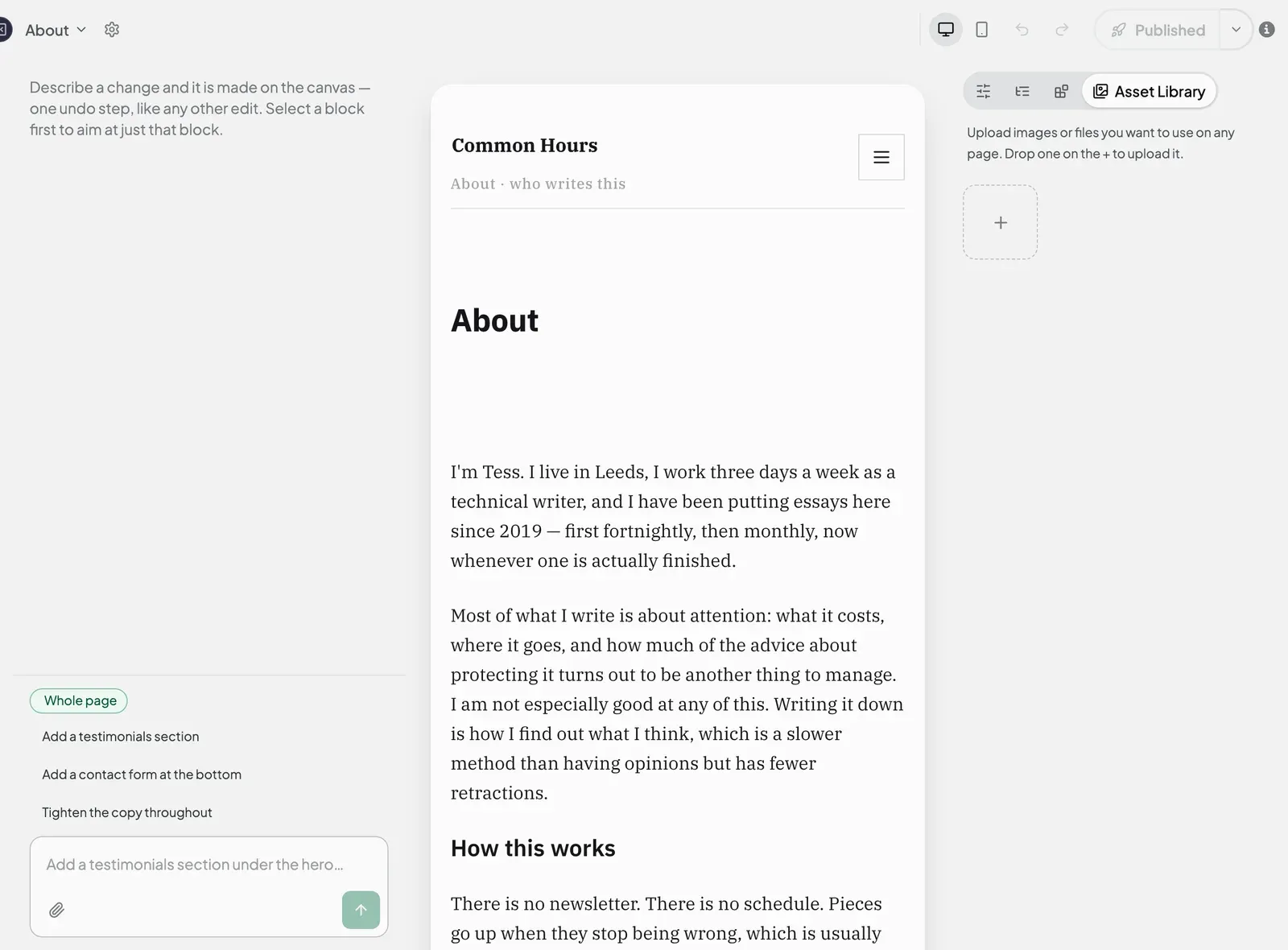
The AI panel
On a wide screen, the AI panel is open on the left. On a smaller screen, click Ask AI in the top bar to open it. If you select something on the page first, the AI changes just that. See Use the AI to change a page.
Keyboard shortcuts
On a Mac use Cmd; on Windows use Ctrl.
| Shortcut | Action |
|---|---|
| Cmd/Ctrl + Z | Undo |
| Cmd/Ctrl + Shift + Z | Redo |
| Cmd/Ctrl + C, then Cmd/Ctrl + V | Copy and paste what you have selected |
| Cmd/Ctrl + D | Duplicate what you have selected |
| Delete or Backspace | Delete what you have selected |
While you are typing in text or a field, these keys work on your text instead.
Next steps
Still stuck? Contact us and we will help.